
Skool Languages & Subtitles: What Skool Supports (and How to Translate Any Skool Course)
Skool courses are often English-first and subtitles can be confusing. Learn how Skool captions work (native upload vs YouTube/Vimeo embeds), what language support you can expect on the web, and how to follow any Skool lesson with live captions + real-time translation using SonicCaption.
Skool Languages & Subtitles (Web): What’s Supported + How to Translate Any Skool Course
If you’re taking a course on skool.com and thinking:
- “Is Skool available in my language?”
- “Does Skool have subtitles?”
- “Why are captions missing… or only in English?”
- “How do I translate a Skool lesson without pausing every few seconds?”
This guide is written for Skool web learners who want a practical answer (not guesswork).
Transparency: SonicCaption is an independent browser extension (not affiliated with Skool). We built it to add live captions + real-time translation on top of any website audio/video — including Skool.
First: What is Skool, exactly?
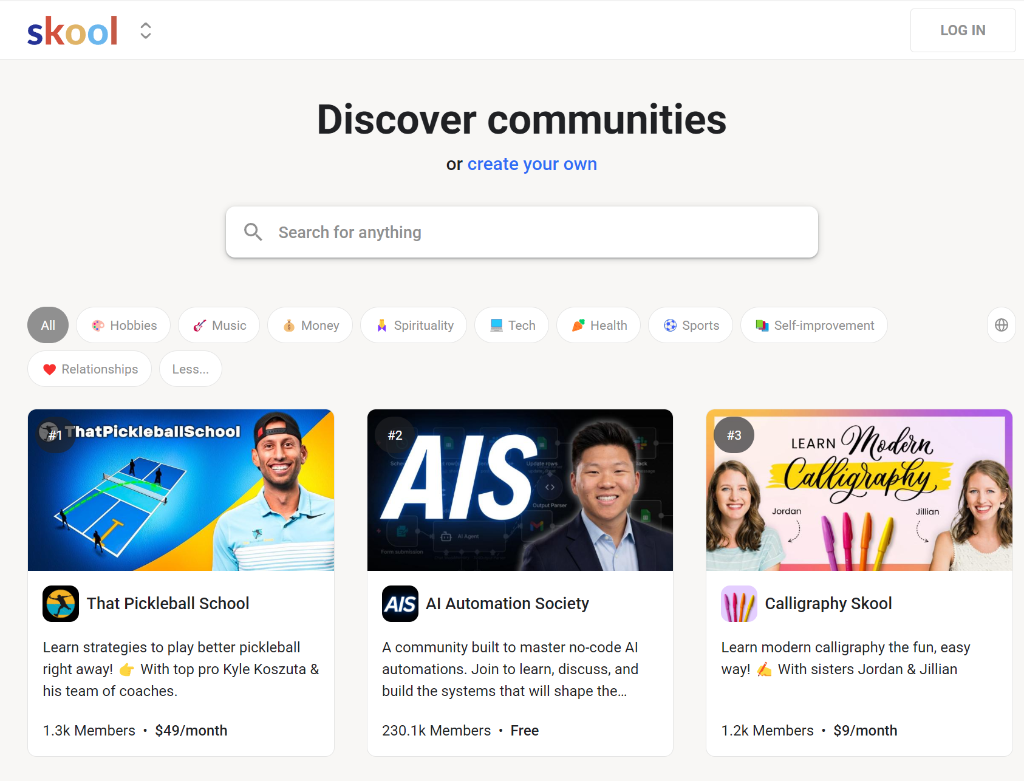
Skool is an all-in-one platform where creators run a community + courses + events in one place — typically with a paid membership. You’ll usually see tabs like Community, Classroom, and Calendar inside a group.
Skool “language support” has 3 layers (this is the part most people miss)
When someone asks “Does Skool support my language?”, they may mean one of these:
- Skool interface (UI) language — menus/buttons/navigation
- Course content language — what the creator teaches in
- Captions/subtitles — what you can read while the video plays
Skool can feel “supported” on one layer and not the others.
1) Skool web UI language: what to expect
Skool doesn’t present a big “language picker” inside the web UI (at least not in the places most learners would expect).
So if the UI itself is hard to follow, the most reliable workaround is:
Use browser page-translation for Skool UI text
- Chrome: right-click → Translate to…
- Edge: translate icon in the address bar
This helps with:
- navigation labels
- posts/comments
- written lesson text
But it won’t translate spoken video audio.
2) Course language on Skool: creator-driven
Skool groups can be taught in any language — it depends on the creator and the community.
So even if the UI is English-first, your course might be:
- Spanish
- Japanese
- French
- anything
The real pain is usually the next layer: captions/subtitles.
3) Skool subtitles: how they work (native upload vs embeds)
Skool supports two ways creators add video lessons — and this directly affects subtitles:
A) Creator uploads the video directly to Skool (native hosting)
If the lesson video was uploaded straight into Skool, Skool can generate closed captions in English automatically (when the video has sound).
So you might see:
- captions available
- but only English
B) Creator embeds a video (YouTube / Vimeo / Loom / Wistia)
If the lesson is an embedded player, subtitles usually depend on:
- whether captions exist on that platform
- whether the creator uploaded subtitles (SRT/VTT)
- whether the platform’s auto-captions are enabled
So you might see:
- great captions (if the creator set them up)
- or no captions at all
If Skool doesn’t support your language for subtitles: 2 options
Option 1: Manual translate workflow (free, but slow)
- slow playback
- pause, copy a sentence
- translate
- repeat
This works, but it ruins the flow of learning.
Option 2: Live captions + real-time translation on Skool (recommended)
If your goal is: “Just let me follow the lesson smoothly in my language”
…use SonicCaption.
SonicCaption can:
- generate live captions from the lesson audio
- translate in real time into your language
- optionally show bilingual subtitles (original + translation)
How to use SonicCaption on Skool (web)
Step 1) Install SonicCaption
- Chrome: https://chromewebstore.google.com/detail/real-time-bilingual-video/mlmgeakkomnhoblldciflmoeefmdaaha
- Edge: https://microsoftedge.microsoft.com/addons/detail/realtime-bilingual-video/dnlgkahhcbejfjdfmikpligpdlfhedig
Step 2) Open your Skool lesson and start the video
Make sure the lesson audio is playing normally.
Step 3) Turn on captions
- Click the SonicCaption extension icon
- Click Start
You’ll see captions appear as an overlay.
Step 4) Turn on translation (or bilingual)
Recommended settings for most courses:
- Source language: the instructor’s language (or Auto)
- Target language: your preferred language
Pick a mode:
- Translate-only: best for pure comprehension
- Bilingual: best if you’re learning the instructor’s language
Step 5) Make it comfortable for long lessons
Small tweaks help a lot:
- larger font
- higher contrast
- keep captions to 1–2 lines
- move overlay away from on-screen slides
Tips for Skool creators (if you want multilingual students to succeed)
If you run a Skool course and you have international learners:
-
If you upload videos directly to Skool, remember captions are English auto-generated — consider providing:
- a downloadable transcript, or
- a translated summary / key points
-
If you embed videos (YouTube/Vimeo), you can upload subtitle files and give learners a better native caption experience.
A tiny improvement here can massively reduce refunds and support tickets.
FAQ
“Does Skool have subtitles?”
Sometimes. It depends on how the creator added the video. Skool can auto-generate English captions for native uploads, and embedded videos depend on the external platform.
“Can I get Skool captions in my language?”
If captions exist in your language (via the embedded video host), yes. If not, live translation is usually the smoothest workaround.
“Is SonicCaption built for Skool web?”
Yes — it’s designed for browser-based audio/video, including Skool lessons.
Enjoyed this article? Share it with others!