Inner Engineering Online in Your Language: Supported Languages + Live Translation Tips
Taking Sadhguru’s Inner Engineering Online but it’s not in your first language? Here are the official language options — and a practical way to follow along with live captions & translation.
Inner Engineering Online in Your Language (Even If Your Language Isn’t Supported)
If you’ve found yourself on online.innerengineering.com watching a Deep Dive video and thinking, “I love this — but I’m missing too much in English,” you’re not alone.
This guide is here to help you:
- quickly check whether Inner Engineering is available in your language, and
- if it isn’t, follow the course with live captions + real-time translation in your language.
Note / Transparency: This article is not affiliated with Isha Foundation, Sadhguru, or Inner Engineering. It’s written to help learners who need language support.
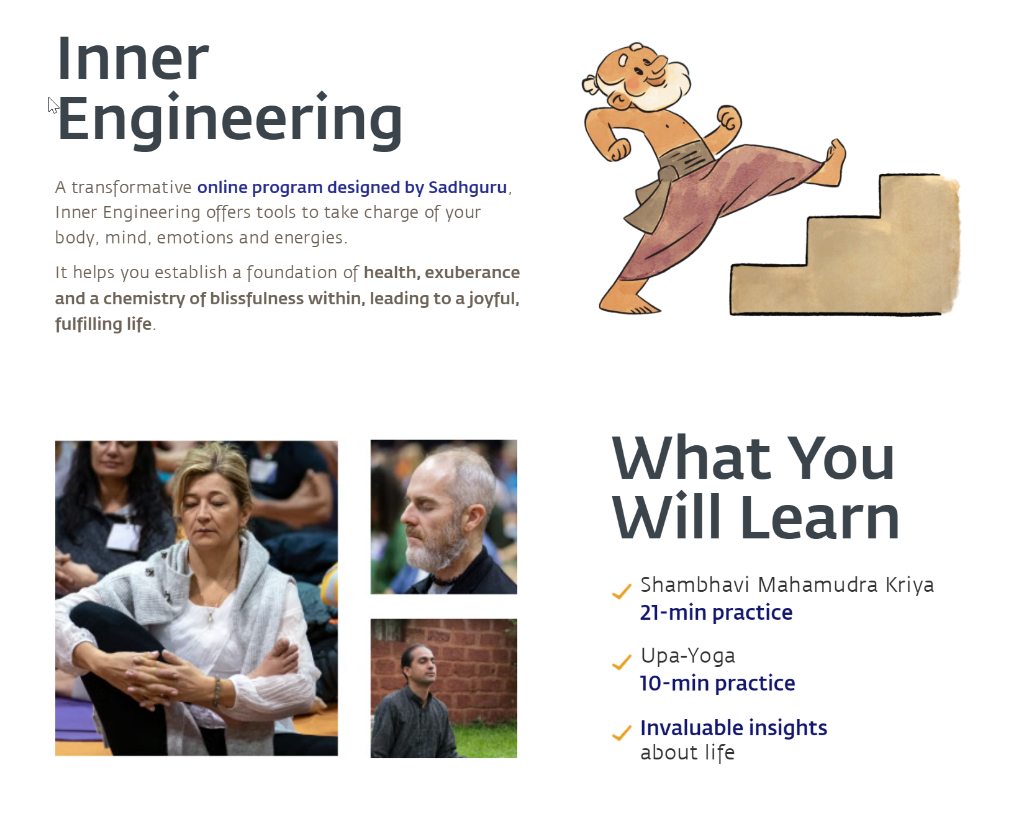
Where is the official Inner Engineering site?
You’ll often see “Sadhguru” content under Isha Foundation’s official site. In practice, sadhguru.org redirects into isha.sadhguru.org, where Inner Engineering is listed and explained.
What languages does Inner Engineering officially support?
According to Inner Engineering support, the program is available in 15 languages:
| Western Languages | Chinese | Indian Languages |
|---|---|---|
| English | Chinese (Simplified) | Hindi |
| French | Chinese (Traditional) | Marathi |
| German | Kannada | |
| Italian | Tamil | |
| Russian | Telugu | |
| Spanish | Malayalam | |
| Bengali |
If your first language is on this list, your best experience will usually be to register in that language from the start.
If your language is supported: choose it during registration
Inner Engineering support explains two common paths:
Option A — Using the Sadhguru App
Change the App language first, then open Inner Engineering and register.
Option B — Using a laptop/desktop browser
On the registration page, click the language dropdown (often showing “English”) and select your preferred language.
Important: Inner Engineering support also notes that once you’re registered, you generally can’t change the program language for steps later. So it’s worth choosing carefully up front.
If your language is not supported (example: Romanian): two practical options
If your language isn’t on the official list, you still have a few ways to keep learning without constantly pausing to translate.
Option 1) Manual workflow (free, but slower)
- Slow playback to 0.75× or 0.5×
- Pause frequently
- Keep a glossary of recurring terms
- Rewatch key segments
This works, but it can turn a meaningful session into a frustrating stop-and-go experience.
Option 2) Live captions + translation in your language (recommended for smoother learning)
That’s exactly what SonicCaption is for.
SonicCaption provides real-time captions and can translate live into 60 languages — which covers most learners, even when the course itself doesn’t.
How to use SonicCaption with Inner Engineering Online (step-by-step)
Step 1: Install SonicCaption
- Chrome Users: Install SonicCaption
- Edge Users: Install SonicCaption
Tip: pin it to your toolbar so it’s always one click away.
Step 2: Open your Inner Engineering lesson
Go to your lesson on online.innerengineering.com and start the video.
Step 3: Start captions
- Click the SonicCaption extension icon
- Click Start
You should now see live captions overlayed as the lesson plays.
Step 4: Turn on translation (or bilingual mode)
Depending on how you like to learn:
- Translate-only: best when you want to focus on your language
- Bilingual: best when you want to improve English while still understanding everything
In settings:
- Set Source language to English (or Auto if you prefer)
- Set Target language to your language (e.g., Romanian)
Step 5: Make it comfortable for long lessons
A few small tweaks make a big difference:
- Increase font size
- Use a high-contrast theme
- Move the overlay away from on-screen text
- Keep captions to 1–2 lines for readability
Learning tips (especially for “concept-heavy” sessions)
These courses often include:
- dense ideas
- unfamiliar terms
- long explanations before the key point
A few habits help a lot:
- Use bilingual mode for the first 1–2 sessions, then switch to translate-only once you’re comfortable.
- Create a tiny glossary (5–10 words) for recurring concepts so the translation feels consistent.
- Rewatch just the “Deep Dive / Q&A” parts you didn’t fully get the first time.
FAQ
Does Inner Engineering Online have subtitles?
Inner Engineering is offered in multiple languages, but the exact experience can vary (language versions, localized delivery, etc.). If your language isn’t officially offered, live translation is often the simplest way to follow along without losing momentum.
Can I change the program language later?
Inner Engineering support indicates that once you’re registered, you generally can’t change the program language for the steps later. If you’re unsure, it’s best to double-check before you commit.
Is SonicCaption affiliated with Isha Foundation / Sadhguru / Inner Engineering?
No — SonicCaption is an independent browser extension. We’re simply helping learners access content in the language they’re most comfortable with.
Quick takeaway
- If your language is in the official list, select it during registration for the smoothest experience.
- If your language is not supported, live captions + translation can make the program dramatically more accessible — without constantly pausing to translate.
If you’d like, you can contact us anytime: support@soniccaption.com
Enjoyed this article? Share it with others!