How to Get Live Captions for YouTube Live, Twitch, and More
Get live captions for YouTube Live and Twitch in real time. Compare native options, learn the limits, and add browser-based subtitles plus translation.
How to Get Live Captions for YouTube Live, Twitch, and More
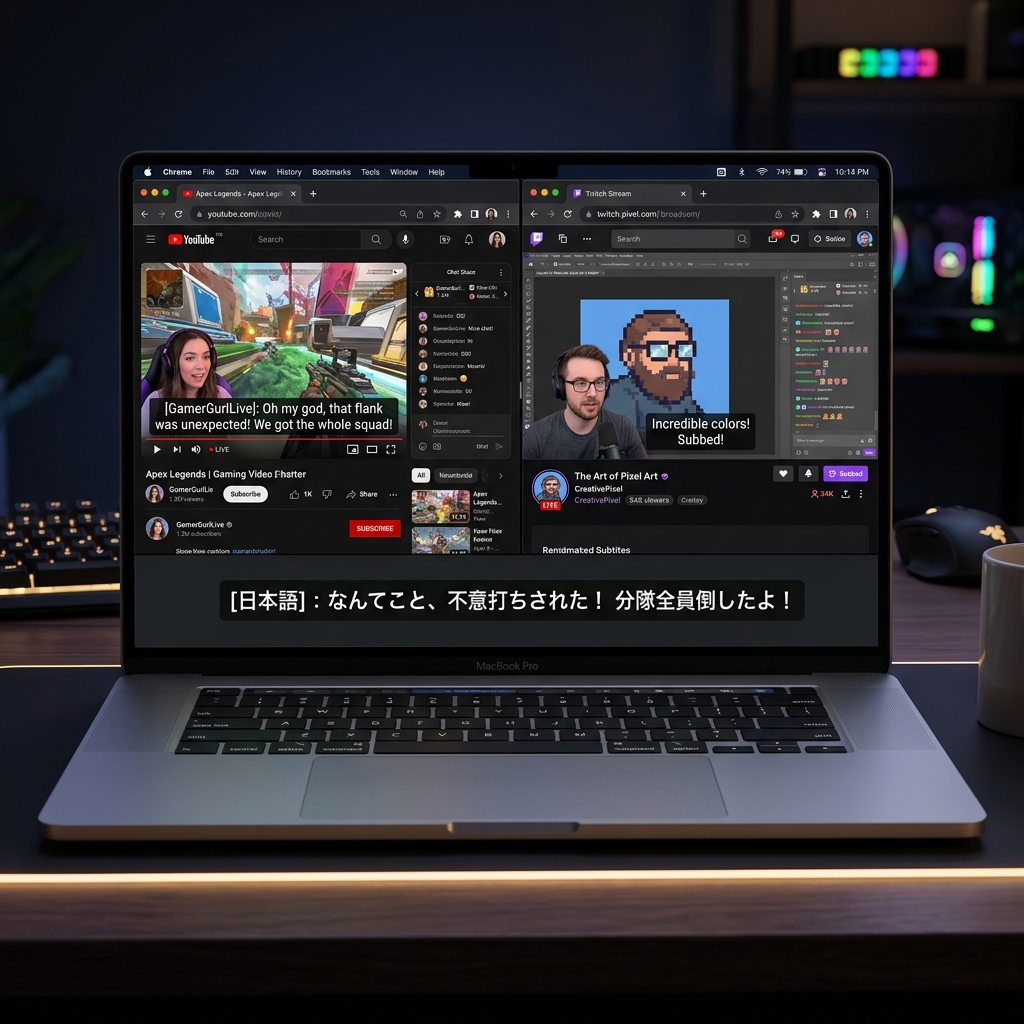
If you are watching a livestream and the captions are missing, broken, or only available in the wrong language, you are not alone. Live captions for YouTube Live and Twitch are inconsistent across platforms: some streams get auto-captions, some do not, and almost none offer real-time translation. Whether you are following a foreign-language creator, watching a fast-paced gaming stream, or trying to keep up with a webinar with the sound off, the viewer experience is rarely smooth.
The good news: you do not have to wait for the streamer to fix it. With a browser-based tool like SonicCaption, you can get real-time subtitles for live streams and optional translation directly in Chrome — no creator setup required.
Why live stream captions matter
Live captions are not just an accessibility feature. They are a viewing tool.
- Accessibility. Deaf and hard-of-hearing viewers depend on reliable subtitles to follow live content.
- Accents and fast speech. Even fluent speakers miss words on rapid-fire commentary, technical jargon, or unfamiliar accents.
- Sound-off viewing. Watching at work, on a commute, in a quiet room, or late at night is far easier with captions.
- Multilingual audiences. A creator in Tokyo, Seoul, or São Paulo can attract viewers worldwide if those viewers can read along.
- Language learning. Live streams are perfect immersion material — but only if you can read what you hear.
- International communities. Esports tournaments, news streams, conferences, and creator events draw global audiences who need translation, not just transcription.
For gaming streams, news, webinars, and large creator events, captions turn a "kind of follows along" experience into something you can actually use.
Which platforms support live captions natively?
Native support exists, but it varies a lot by platform, language, and creator setup. Here is an honest snapshot.
- YouTube Live. Auto-generated live captions are available for many channels, but availability depends on stream language, channel eligibility, and creator settings. Translation is limited.
- Twitch. Twitch does not provide first-party live auto-captions for all streams. Captions usually depend on third-party services that the streamer enables.
- LinkedIn Live. Captions are supported in some events, often tied to the broadcasting tool the host uses.
- Facebook Live. Auto-captions are available in selected languages and are not guaranteed across all streams.
- Chrome Live Caption. Built into Chrome, useful for many media types, but with constraints around language coverage and no built-in live translation.
- TikTok LIVE. Captioning support exists in some regions and contexts, but coverage and quality vary.
In short: native live captions are useful when they show up — but you cannot count on them.
Comparison table
| Platform | Native live captions | Live translation | Viewer-side control | Works even if streamer does not enable captions? | Notes |
|---|---|---|---|---|---|
| YouTube Live | Often, language-dependent | Limited | Low | Sometimes (auto-CC may appear) | Quality varies by channel and language |
| Twitch | Rare, usually third-party | No | Very low | No | Depends on streamer setup |
| LinkedIn Live | Sometimes | Limited | Low | No | Tied to broadcaster tooling |
| Facebook Live | Selected languages | Limited | Low | Sometimes | Inconsistent coverage |
| Chrome Live Caption | Yes (browser-level) | No | High | Yes | Limited language support, no translation |
| TikTok LIVE | Region-dependent | Limited | Low | No | Coverage varies |
| SonicCaption (Chrome) | Yes, viewer-side | Yes | High | Yes | Works across streaming sites in the browser |
Common limitations of native live captions
Even when native captions are available, viewers run into the same recurring problems:
- Limited language support. Auto-captions often cover only a handful of major languages.
- Streamer dependency. On platforms like Twitch, captions usually require the host to enable a third-party tool. If they do not, you are stuck.
- No live translation. Most native captioning is monolingual. If the stream is in Japanese and you read English, you are out of luck.
- Inconsistent quality. Multi-speaker streams, background music, sound effects, and noisy gaming audio all degrade accuracy.
- Platform-specific setup. Each platform has its own toggle, settings page, and quirks.
- Not portable. Native captions only work on the platform that produced them. Move to a different site, start over.
- Weak bilingual experience. True bilingual subtitles — original language plus translation, side by side — are rarely supported.
This is the gap that a viewer-side tool fills.
How to get subtitles on YouTube Live and Twitch in real time
Here is the practical workflow most viewers use with SonicCaption. It works the same way regardless of which streaming site you are on.
- Open the live stream in Chrome. Go to the YouTube Live broadcast, Twitch channel, or any other browser-playable stream.
- Launch SonicCaption. Open the SonicCaption Chrome extension and start the captioning session on the active tab.
- Start real-time captioning. SonicCaption listens to the stream audio and generates live subtitles as the stream plays.
- Turn on translation if you need it. Pick your target language to get translated captions or bilingual subtitles for livestreams with both the original and translated text.
- Follow the stream. Captions update in real time as the host speaks, with no setup required from the streamer.
The whole flow is viewer-controlled. You decide when to caption, what language to translate into, and how the subtitles appear.
Why SonicCaption works well for live streams
SonicCaption is built for the viewer, not the broadcaster. That changes the experience in a few important ways.
- Runs directly in your browser. No separate app, no OBS plugin, no streamer cooperation needed.
- One workflow across platforms. The same captioning flow works on YouTube Live, Twitch, news sites, webinar players, and most other browser-playable streams.
- Independent of the streamer. You get captions even when the host has not enabled any captioning service.
- Real-time output. Subtitles are generated as the stream plays, with low enough latency for live viewing.
- Optional translation. Translate into your language of choice, or display bilingual captions for language learning.
- Consistent for global audiences. International viewers do not have to depend on whether a creator has set up CCs.
It is not magic — accuracy still depends on stream audio quality — but it removes the biggest blockers most viewers hit.
SonicCaption vs native live captions
To be fair: native captions are good when they show up.
- If you are watching a major English-language YouTube Live stream with auto-CC enabled and you only need monolingual subtitles, the built-in option is fine.
- If you are using Chrome Live Caption for general browser audio in a supported language, that may be enough.
SonicCaption is more useful when:
- You watch streams across multiple platforms and want one consistent workflow.
- The streamer has not enabled captions, especially on Twitch.
- You need live translation or bilingual subtitles.
- The stream is in a language native captions do not cover well.
- You want viewer-side control over when captions appear and what language they are in.
Think of native captions as a sometimes-available convenience and SonicCaption as a reliable fallback that also adds translation on top.
Best use cases
Some of the situations where viewers reach for browser-based live captions:
- Foreign-language creator streams. Following a Japanese VTuber, a Korean variety streamer, or a Brazilian gaming channel without speaking the language.
- Twitch gaming streams. Catching commentary during loud gameplay, especially when streamers do not run a captioning bot.
- YouTube Live news and talk shows. Keeping up with fast-spoken hosts, panel discussions, or breaking news.
- Interviews, podcasts, and live events. Reading along during long-form content where every sentence matters.
- Language learning. Using bilingual subtitles to study real, unscripted speech instead of textbook dialogue.
- Quiet viewing. Following streams in public, in shared spaces, or at work without unmuting.
The common thread: viewers who want control over their own captions instead of waiting for someone else to provide them.
FAQ
Does YouTube Live have automatic captions?
YouTube Live offers auto-generated captions for many streams, but availability depends on the channel, language, and stream settings. Coverage and accuracy vary, and translation is limited. A viewer-side tool like SonicCaption fills the gap when native captions are missing or in the wrong language.
How do I get subtitles on Twitch streams?
Twitch does not provide universal first-party live captions. Some streamers enable third-party captioning bots, but most do not. The most reliable way to get Twitch captions as a viewer is to use a browser-based captioning tool that listens to the stream audio in your tab.
Can I translate a live stream in real time?
Yes. Native platform captions rarely include real-time translation, but tools like SonicCaption can translate live audio into your chosen language as the stream plays, including bilingual side-by-side subtitles.
What is the best way to get captions on livestreams in Chrome?
For most viewers, the simplest approach is a Chrome-based captioning tool that works across sites. Chrome Live Caption handles general audio in supported languages but does not translate. SonicCaption adds translation and works consistently across YouTube Live, Twitch, and other browser-playable streams.
Do live captions work if the streamer does not enable subtitles?
Native captions usually require the streamer or platform to enable them. Viewer-side tools do not — they generate captions from the audio playing in your browser, so they work even when the host has not set up any captioning service.
Can I get bilingual subtitles for live streams?
Yes. Bilingual subtitles — showing the original language and a translation together — are not a standard feature of most platforms. SonicCaption supports bilingual captions, which is especially useful for language learners and international audiences.
Are live captions accurate?
Accuracy depends on stream audio quality, accents, background noise, and overlapping speakers. Captions are generally reliable for clear speech and may struggle with very noisy gaming streams or heavy jargon. This is true for both native and third-party captioning.
Do I need to install anything to use SonicCaption?
SonicCaption runs in Chrome through the Chrome Web Store extension. Once installed, you can start captioning any browser-playable live stream from the active tab.
Conclusion
Native YouTube Live subtitles and Twitch captions are useful when they appear, but they are inconsistent, rarely translated, and almost always dependent on the streamer or platform. For viewers who want reliable real-time subtitles for live streams, with optional translation and a single workflow across sites, a browser-based tool is the practical answer.
If you watch livestreams across YouTube Live, Twitch, or any other browser-playable platform, give SonicCaption a try. Turn on real-time captions, add translation when you need it, and stop waiting for someone else to enable subtitles for you.
Enjoyed this article? Share it with others.